
MQTT Client: Lightweight Subscribe, Publish and Debug
If you only need to connect to a broker occasionally to check whether a device is publishing, whether the topic is right or whether QoS is working, installing an Electron client is overkill. NetAssistant includes an MQTT client (MQTT 3.1.1 / 5.0) in the same app as its TCP/UDP tools, built with Rust and using about 20MB of memory.
Positioning: a lightweight, scenario-based alternative to dedicated clients such as MQTTX — enough for everyday subscribing, publishing and TLS work, and handier in low-memory environments, on Windows field machines, or when MQTT has to be debugged alongside TCP/UDP. It does not aim to replace every MQTTX feature: MQTT over WebSocket, scripting and data visualization are not supported, and MQTT 5.0 covers the basics only, so MQTTX is still the better fit for those cases.
Download NetAssistant · Detailed MQTTX comparison · All features
Who it is for
- IoT and embedded developers: verify device reporting, platform commands and topic design
- Backend developers: connect to a broker quickly and confirm the subscription path
- Developers who want fewer apps: keep TCP/UDP and MQTT debugging in one tool
- Low-memory environments: avoid a several-hundred-MB client for occasional MQTT checks
Not ideal for: MQTT over WebSocket, full 5.0 features such as user properties, scripting or large-scale connection management. Use MQTTX, EMQX or another dedicated client for those.
Core features
Connection settings
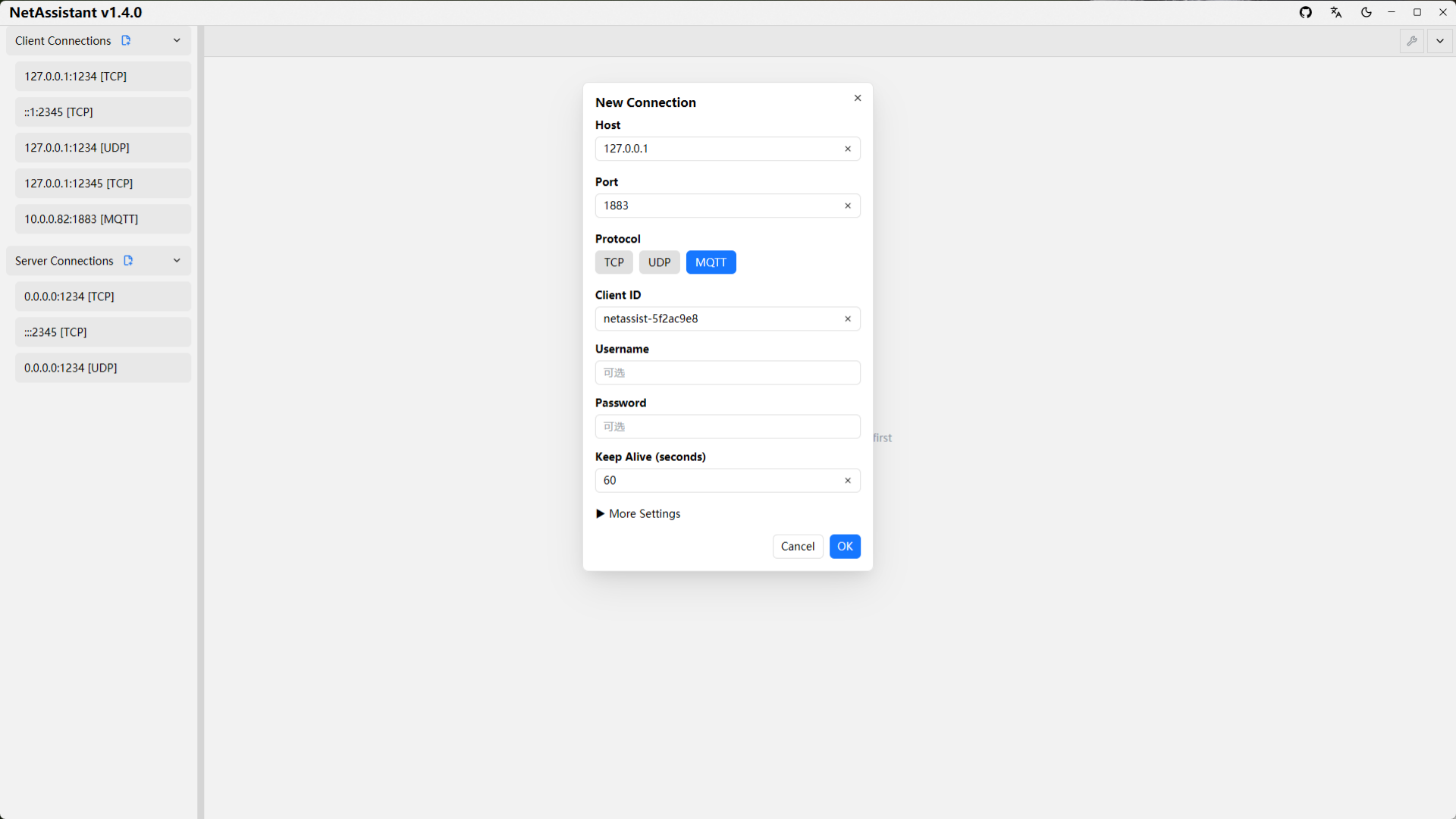
Create an MQTT connection with broker address and port (default 1883), client ID, username/password and keep-alive; the protocol version can be 5.0 (default) or 3.1.1. Additional settings cover clean session and last-will messages (topic / payload / QoS / retain).
The connection name is optional: once set, the connection list and tab title show the name (the address still appears in the info panel and as name @ host:port [PROTOCOL] in the list), and an empty name falls back to the address. Right-click a connection to "Rename Connection" or "Duplicate Connection"; duplicating prefills the source config into a new connection and generates a fresh Client ID for MQTT so two clients never kick each other off the same broker.
MQTT over TLS
With TLS enabled the connection is encrypted, for both 3.1.1 and 5.0. Certificate verification has three modes:
- System roots (default): verify against the system trust store
- Custom CA: a PEM file path, filled in with the file picker, for brokers using a private CA
- Verification skipped: no certificate check, for self-signed testing only; traffic is still encrypted
Mutual TLS optionally takes a client certificate and private key (PEM, PKCS#8 / PKCS#1 / SEC1), which must be provided as a pair; ALPN is optional, comma-separated and omitted when empty. Only certificate file paths are saved, never the PEM content. Handshake failures such as an expired certificate, hostname mismatch or untrusted chain report a readable cause and suggested fix.
MQTT 5.0 (optional)
Use Protocol Version to switch between 5.0 (default for new connections) and 3.1.1. With 5.0 selected, Additional settings expose two connect properties:
- Session Expiry (seconds): leave empty to omit; 0 expires the session on disconnect, a positive value keeps it until then.
- Receive Maximum: 1-65535, leave empty to omit; limits how many QoS 1/2 publishes may be in flight.
Under 5.0, a rejected CONNACK, a failed SUBACK and a broker-initiated DISCONNECT all show the reason code plus the broker reason string; Clean Start reuses the Clean Session switch and is forced when the client ID is empty. User properties, Will Delay, subscription identifiers, shared subscriptions and other advanced features are not provided; QoS, retain and last-will behave the same as in 3.1.1.
Subscription management
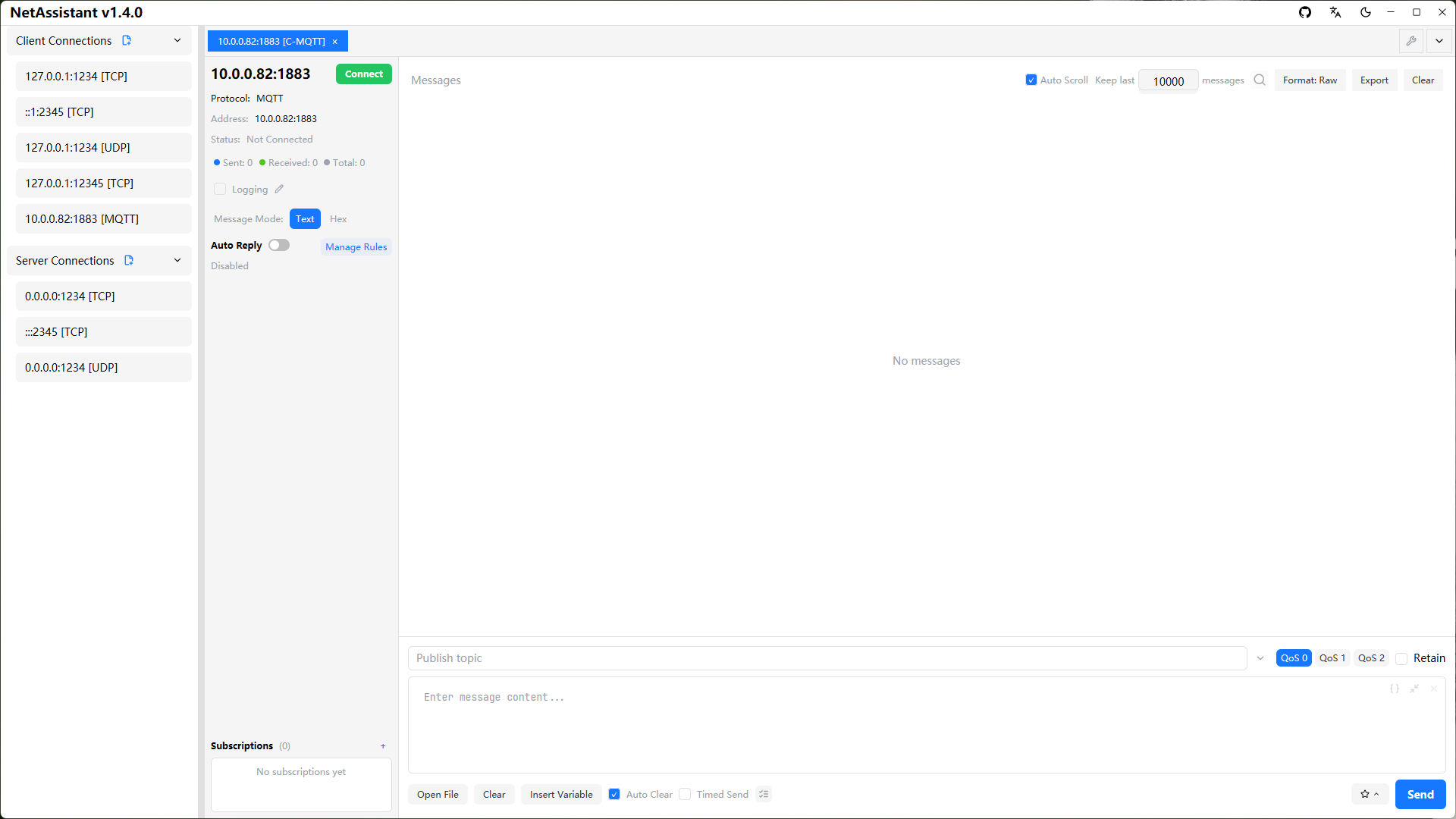
Add, edit or remove subscriptions at runtime without reconnecting. Subscriptions are isolated per connection and only enabled entries are restored after an automatic reconnect. Every subscription has its own switch: it lights up only after the broker confirms it (SUBACK), and a failure or a 10-second timeout disables that entry with a reason (MQTT 5 can tell "not authorized" apart, while 3.1.1 can only report a rejection); the off state is persisted and survives restarts and reconnects. While offline, a clean-session connection can switch an entry off directly, whereas a persistent session (Clean Session off in 3.1.1, or Clean Start off with a positive session expiry in 5.0) still holds the subscription on the broker and asks you to connect before unsubscribing. The list fills the sidebar and scrolls when needed; hover to see the full topic, double-click to copy it.
Publishing
Set topic, QoS (0/1/2) and retain; payload supports text and hex modes. The topic dropdown reuses recent topics for the current connection, including QoS and retain, with up to 20 entries per connection.
Publish failures raise a top-right notification that names the target topic and the reason: a QoS 1/2 publish rejected by the broker shows the reason code (MQTT 5 distinguishes cases such as "not authorized", while 3.1.1 PUBACK carries no reason code and can only report local send errors), and QoS 0 has no broker acknowledgement at all, so only local delivery failures are reported. When send tasks or periodic sending publish to the same topic at high frequency, identical notifications are shown once per 3 seconds while the message log still records every entry. Hover a QoS chip to see its semantics (at most once / at least once / exactly once).
Message view and management
Each message shows a topic tag, with a marker for retained messages. Double-click a topic tag to copy the raw topic. The existing message log, search, export, JSON formatting and reply rules all work in MQTT mode.
Auto-reply and periodic send
Auto-reply publishes the response back to the topic that received the message. Periodic send also uses the current publish topic, which is handy for heartbeats or simulated platform commands.
Quick start
- Create a connection and choose MQTT
- Enter broker address, port, client ID and credentials
- After connecting, add a subscription such as
device/+/status - Fill in topic, QoS, retain and payload, then publish
- Inspect incoming messages; use search or export when debugging
NetAssistant vs MQTTX
| Dimension | NetAssistant | MQTTX |
|---|---|---|
| Stack | Rust + GPUI native | Electron + Vue |
| Memory | About 20MB | Several hundred MB |
| MQTT version | MQTT 3.1.1 / 5.0 (basics) | MQTT 3.1.1 / 5.0 (more complete) |
| TLS / WebSocket | TLS yes (three verification modes, mutual TLS); WebSocket no | Both yes |
| Scripting | No | Yes |
| Connection management | Basic multi-connection | More advanced |
| TCP/UDP debugging integration | Same app | Separate app |
| Price | Free and open source | Free |
Bottom line: choose NetAssistant for basic MQTT debugging, and MQTTX for WebSocket, scripting or fuller 5.0 features. See the MQTTX comparison for details.
FAQ
Does NetAssistant support MQTT 5.0?
Yes. The protocol version can be switched between 3.1.1 and 5.0, and 5.0 covers session expiry, receive maximum, reason codes and other basics; advanced features such as user properties and subscription identifiers are not provided.
Does it support TLS or WebSocket?
TLS is supported; MQTT over WebSocket is not. Choose system roots, a custom CA or skipped verification, with an optional client certificate and private key for mutual TLS.
Can it replace MQTTX?
It covers basic subscribe, publish and lightweight debugging. For MQTT over WebSocket, scripting, data visualization or fuller 5.0 features, MQTTX is better.
Does it support QoS 2 and retain?
Yes. Publishing supports QoS 0/1/2 and retain; subscriptions are managed at runtime with an independent switch per entry, and only the enabled ones are restored after reconnect.
Is it free?
Yes. NetAssistant is open source under Apache-2.0 and all features are available.